Tag: Wordpress

  • wp-admin 404 error after upgrading to 3.5.2

    wp-admin 404 error after upgrading to 3.5.2

    A couple of days ago I upgraded my wordpress from 3.5.1 to 3.5.2. After the upgrade I wasn’t able to log back into the admin page. I just now got it back to working status. I found a post on the wordpress.org forum that helped me out. Thank you ahiddleston.

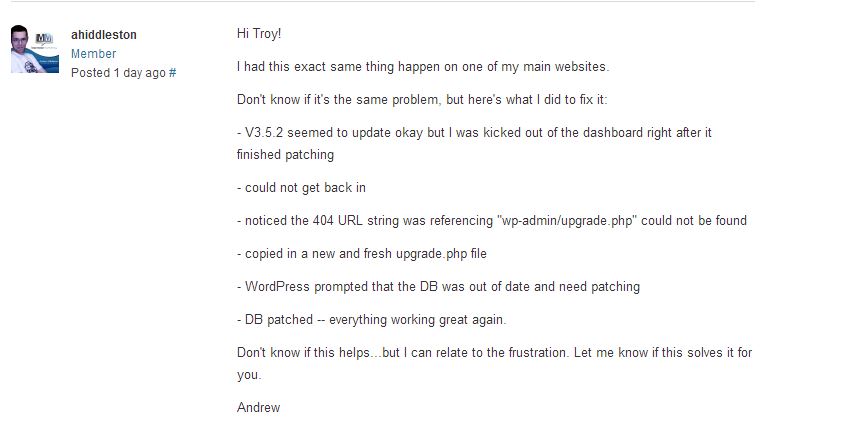
    Capture

    – V3.5.2 seemed to update okay but I was kicked out of the dashboard right after it finished patching

    – could not get back in

    – noticed the 404 URL string was referencing “wp-admin/upgrade.php” could not be found

    – copied in a new and fresh upgrade.php file

    – WordPress prompted that the DB was out of date and need patching

    – DB patched — everything working great again.

  • Vine Embed WordPress Plug-in

    Vine Embed WordPress Plug-in

    Just trying out this vine plug-in for wordpress. Installed cyanogedmod on my roommates galaxy nexus. Here is the vine i made during the process lol.

    https://vine.co/v/blQFvQ6l76V

  • Upgrade WordPress from 3.4.2 to 3.5.1

    Upgrade WordPress from 3.4.2 to 3.5.1

    Just upgraded then wrote this. Well I didn’t even know there was an update to 3.5 because usually the dashboard tells you. I guess there is no automatic upgrade. I downloaded the zip from wordpress, and extracted the files. Backed up everything, disabled all my plug-ins, then deleted everything in the root directory except wp-config.php and the wp-content folder. I copied everything over from the zip file except the wp-content folder, and after that I was pretty much done. Just navigated to marcelliot.net/wp-admin/upgrade.php and clicked upgrade. I logged in, enabled all my plug-ins and I was back up. It was pretty damn pain-free, probably took me longer to write this…

  • Changing Permalinks in WordPress IIS 6.0

    Changing Permalinks in WordPress IIS 6.0

    I wanted to change the permalinks on my blog for SEO reasons, but when doing so the pages for my posts couldn’t be found. After googling a little bit I found the answer that worked. I’m running my blog on IIS 6.0

    On your IIS Server download and install ISAPI_Rewrite Lite. When downloading make sure to use the free Lite version. Install Rewrite Lite, add the ISAPI filter to your IIS Site, by right clicking on your IIS site -> properties -> ISAPI filters tab -> Add … Name the filter whatever you wish and your path to your executable should be:
    C:\Program Files\Helicon\ISAPI_Rewrite3\ISAPI_Rewrite.dll
    Click OK on both windows to save your settings.
    Next navigate to C:\Program Files\Helicon\ISAPI_Rewrite3
    Here we will edit httpd.conf
    Open the httpd.conf file in wordpad and paste in these lines:

    RewriteBase /
    RewriteCond %{REQUEST_FILENAME} !-f
    RewriteCond %{REQUEST_FILENAME} !-d
    RewriteRule ^(.*)$ index.php?p=$1 [NC,L]

    Save and exit this file.
    To complete your IIS changes, Go to start, run and run the command: iisreset /restart
    Now you should be able to change the permalinks on your wordpress blog for some reason I had to choose custom and place /%postname% in the field to get it to work.
    Bad thing about changing your permalinks is your tweets, likes, and google+1 counter will reset 🙁